


Create a product rule to avoid mis-configurations in a bundle
The BNM Tuts >> Uncategorized>> Create a product rule to avoid mis-configurations in a bundleCreate a product rule to avoid mis-configurations in a bundle
Hello Champs!
Today we are learning a topic in Salesforce CPQ.
Do you want to know, what is CPQ? CPQ is a sales tool which helps sales team to automate the sales process in an organization. You can create Quotes with in minutes using simple declarative tools (mouse clicks) in Salesforce CPQ.
So, today we are creating a function which suggest products to Sales Reps in a bundle.
To achieve this, we need to create a product rule. I know, you have a quick question!
What is a Product Rule?
Product rule helps to evaluate a product option, quote, or a quote line against user-made conditions and perform an action in response. Organize your conditions and actions in a product rule object.
All product rules contain related lists for Error Conditions, Actions, and Configuration Rules.
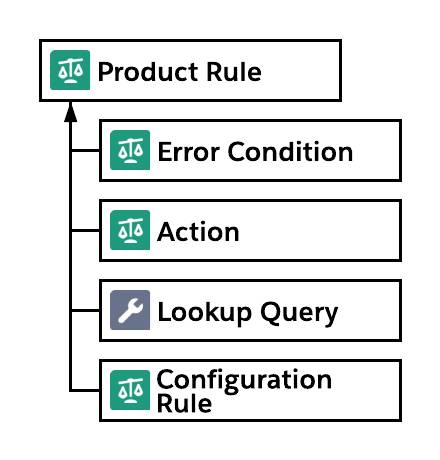
CPQ product rules help ensure sales reps are putting together the right products and bundles every single time. You don’t have to worry about checking whether products and options are compatible with one another, or whether a specific SKU is appropriate for your customer’s business size and use case.
We have 4 types of Product rules and in that we are now discussing about an “Alert Rule”.
Alert rules provide informational messages during configuration or pricing. Unlike a validation rule, alert rules let you save your configuration or quote without having to change anything. They’re useful for providing suggestions on optimal but non-required configurations and pricing processes such as best practices.
Use Case
Joe is an administrator and she received a business requirement at BNM Corp, which sells smartphone packages. It is a bundle product and options included in it are divided into 4 different groups using Product Features.
Joe got a requirement to display a message to the Sales Reps whenever they select either of the below 2 products or both.
- Smartphone Fast Charger
- Smartphone Wireless Charger
Message To Display: Fast Charger and Wireless Charger, both are WIRELESS.
To practice product rules, you need a developer account or you can have your own free developer account in Salesforce.
How to create a Product Rule?
- Navigate to Product rule tab. Click on “New” Tab.

2. Enter below information and Save.

3. Once you have saved the Product rule, then we need to add the conditions for the rule – “Chargers – alert” we have created. So, that it executes ONLY if Fast Charger/Wireless Charger/Both products are selected.
Now, go-to the Error Conditions related list on the Product Rule and click New Error Condition.

4. Fill the details as in the below images. We need to create 2 error conditions for both products to check whether the both are selected or not.
5. Its time to assign the product for this product rule. How we can do that? It is simple.
6. Go-to Configuration rule in relates list of product rule. Click on “New”.

7. Enter the information as shown in below image and click Save.

8. It’s time to test the product rule we created. Go-to Quotes page and select any quote or create a new quote. Click on “Add Products” and add ‘6″ Smartphone’ to the quote.

Once you have added the 6″ Smartphone product, you will be directed to configuration page. Here select any of the two products (Fast charger or Wireless charger) and click “Save“.

You will see a pop-up alert box with a message shown below.

Wohoo!! You have successfully created an Alert Product rule.
Thank you for reading post!
Sharing is caring, please share the post and give a like or vote for this post (If you like this one).
Related Post
Salesforce API Configuration – The Ultimate Guide You’ll Laugh & Learn From!
Hey Trailblazers! Welcome back to The BNM Tuts, where we make complex Salesforce things as…