Process Automation Specialist Superbadge
The BNM Tuts >> Super Badges>> Process Automation Specialist Superbadge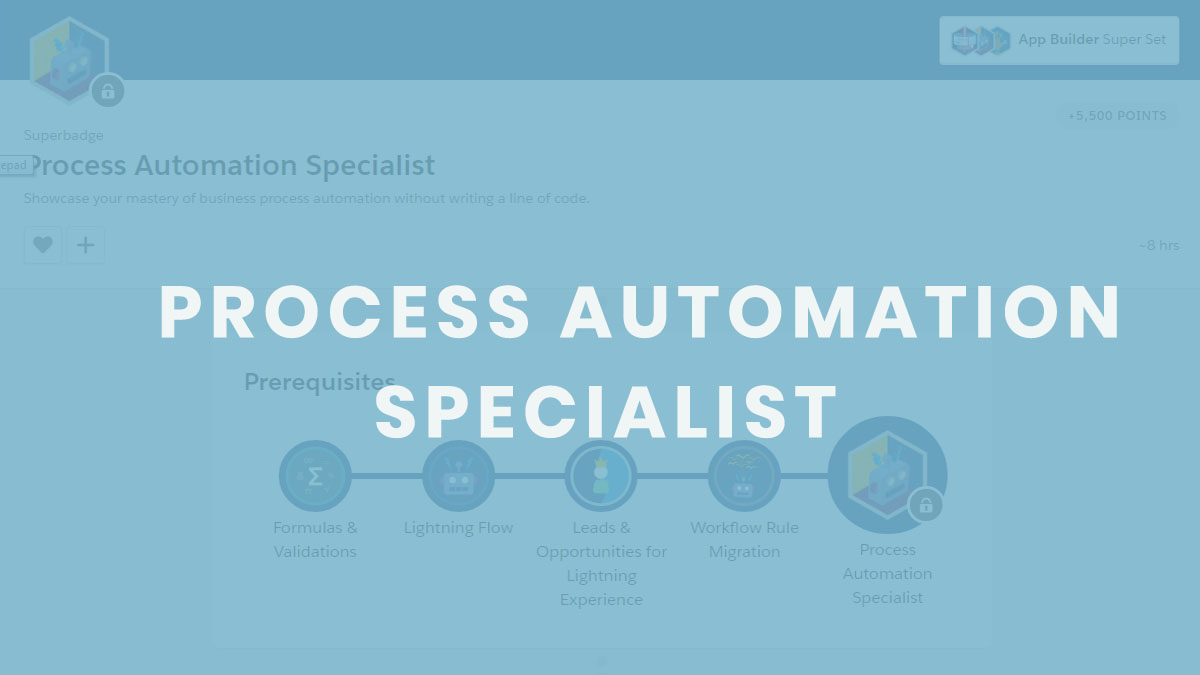
Process Automation Specialist Superbadge
Showcase your mastery of business process automation without writing a line of code.
Concepts we use to complete this Superbadge:
- Validations and Formulas
- Sales Process
- Process Builder
- Flow
Important Pre-works before you start doing this Superbadge:
- Create a new Trailhead Playground for this superbadge. Your new org will have all the special data you need. (Be sure to create a Trailhead Playground, and not a regular Developer Edition org. Only Trailhead Playgrounds have the correct data for these challenges.) Using this org for any other reason might create problems when validating the challenges.
- Use Lightning Experience.
- Install the Process Automation superbadge unmanaged package(package ID 04t46000001Zch4). If you have trouble installing a managed or unmanaged package or app from AppExchange, follow the steps in this article.
- Don’t use Workflow to solve any challenges.
These three are very important to avoid any error while doing challenges in the superbadge.
Challenge 1
Validation Rule
- Check the function for Length.
- Remember to check the NULL Values in Validation rule.
Queue Creation
- This is straightforward normal Queue creation
- Create Names with related to appropriate sales team.
Assignment Rule
- Create new Assignment rule for this scenario(Do not use the standard rule).
- Make sure that you rule is Active before you validate this step.
Tip: Create 2 public groups (Sales Team) and assign each one queue.
Challenge 2
Field Creations on Account Object
- Number of deals Field should be a Roll-Up Summary take count of COUNT Opportunities
- Number of won deals Field should be a Roll-Up Summary (COUNT Opportunity) with filter criteria of Closed Won
- Amount of won deals Field should be a Roll-Up Summary (SUM Opportunity) with filter criteria of Closed Won
- Last won deal date Field should be a Roll-Up Summary (MAX Opportunity)
- Deal win percent Field should be a Formula(Percentage field) IF Number_of_deals__c greater than 0 the , Number_of_won_deals__c /Number_of_deals__c otherwise Zero
- Call for Service Field should be a Formula (Date) IF(OR(TODAY() – 730 > Last_won_deal_date__c , TODAY() + 730 < Last_won_deal_date__c ), ‘Yes’,’No’)
Validation Rules on Account Object
- For Customer – Channel
ISCHANGED( Name ) && ISPICKVAL(Type, “Customer – Channel”)
- For Customer – Direct
ISCHANGED( Name ) && ISPICKVAL(Type, “Customer – Direct” )
- For Billing State/Province
NOT(
CONTAINS(“AL:AK:AZ:AR:CA:CO:CT:DE:DC:FL:GA:HI:ID:” &
“IL:IN:IA:KS:KY:LA:ME:MD:MA:MI:MN:MS:MO:MT:NE:NV:NH:” &
“NJ:NM:NY:NC:ND:OH:OK:OR:PA:RI:SC:SD:TN:TX:UT:VT:VA:” &
“WA:WV:WI:WY”, BillingState))
- For Billing Country
BillingCountry <> “US” && BillingCountry <> “USA” && BillingCountry <> “United States” && NOT( ISBLANK(BillingCountry ) )
- For Shipping State/Province and Shipping Country
Don’t forget replicate For Shipping State/Province and Shipping Country same as Billing State/Province and Billing Country validation which I have mentioned above.
Challenge 3
It can be done easily:
- Create a object and make sure the object name should be Robot_Setup__c
- Edit the Robot name(Standard field) switch the data type from Text to AutoNumber and make sure the display format should be ROBOT SETUP-{0000}
- Create following fields with correct data type:
Date——————–>Date__c————————->DATE
Notes——————-> Notes__c———————–>TEXT
Day of the Week——>Day_of_the_Week__c——–>TEXT
Challenge 4
- Create Sales Process in Opportunity; the name should be RB Robotics Sales Process.
- Create a record type; the name should be RB Robotics Process RT.
- Add Awaiting Approval value in opportunity Stage don’t forget to add RB Robotics Process RT record type.
- Create a Checkbox field and Name it Approved.
- Write a validation rule as below:
AND( Amount > 100000, Approved__c = False)
Challenge 5
Approval Process Definition Detail: See the screenshot below for details


It’s time to create Process Builder.
Name: Automate Opportunities


Note: If you have trouble in creating process builder, comment the errors you are getting, so that I will guide you to process it.
Challenge 6
Create the flow to display products.

Screen (Product Type Search) Properties:

Get Records (Product Name Lookup) Properties:


- Activate the flow
- Add the flow to the opportunity screen using app builder.
Create a Record Page on Opportunity Object:
Go to Lightning App Builder page and click new. Record Page Properties are as follows

- Add the component on newly created Opportunity Record Page.
- Please don’t forgot to Activate the page.
Challenge 7
- Change the datatype for “Day of the week” field from TEXT to Formula (TEXT) and use the following the formula to get Day of the week
CASE( MOD( Date__c – DATE(1900, 1, 7), 7), 0, “Sunday”, 1, “Monday”, 2, “Tuesday”, 3, “Wednesday”, 4, “Thursday”, 5, “Friday”, 6, “Saturday”,”Error”)
Or You can use this formula also instead of above formula
CASE(WEEKDAY( Date__c ),
1, “Sunday”,
2, “Monday”,
3, “Tuesday”,
4, “Wednesday”,
5, “Thursday”,
6, “Friday”,
7, “Saturday”,
Text(WEEKDAY( Date__c )))
Create Another Process Builder (Name: Robot Setup)
Conditions are as below:
- If Day of the week is Saturday , change [Robot_Setup__c].Date__c +2
- If Day of the week is Saturday , change [Robot_Setup__c].Date__c +1


Activate the Process and you are done!
Hooray.. Done the Superbadge Successfully..

Note: If you face any trouble in any of the challenge, comment below. I will make sure to reply you within short time and help you to complete the Superbadge.
Sharing is caring. Like it and share it to help our #salesforceohana members. It will help the people those who want to complete the Superbadge.
Thank you for reading and sharing!!!
Related Post

Tips to complete the Lightning Experience Specialist Superbadge
Pre-requisites to unlock this Superbadge Concepts Tested Lightning Experience UILightning Process BuilderLightning App Builder Remember…